Getting Started
This guide walks you through connecting your Interactive Brokers account so Optionslab can load your positions, track your trades, and compute statistics over your closed trades.
By the end you will have:
- Flex Web Service enabled and a token saved
- An Open Positions Flex Query and its query id saved
- Optional: a Trade Confirmations Flex Query for intraday and same-day positions
- Optional: a Historical Trades Flex Query to unlock the Stats page
- Your IBKR account connected in Optionslab with positions syncing automatically
Step 1 — Enable Flex Web Service
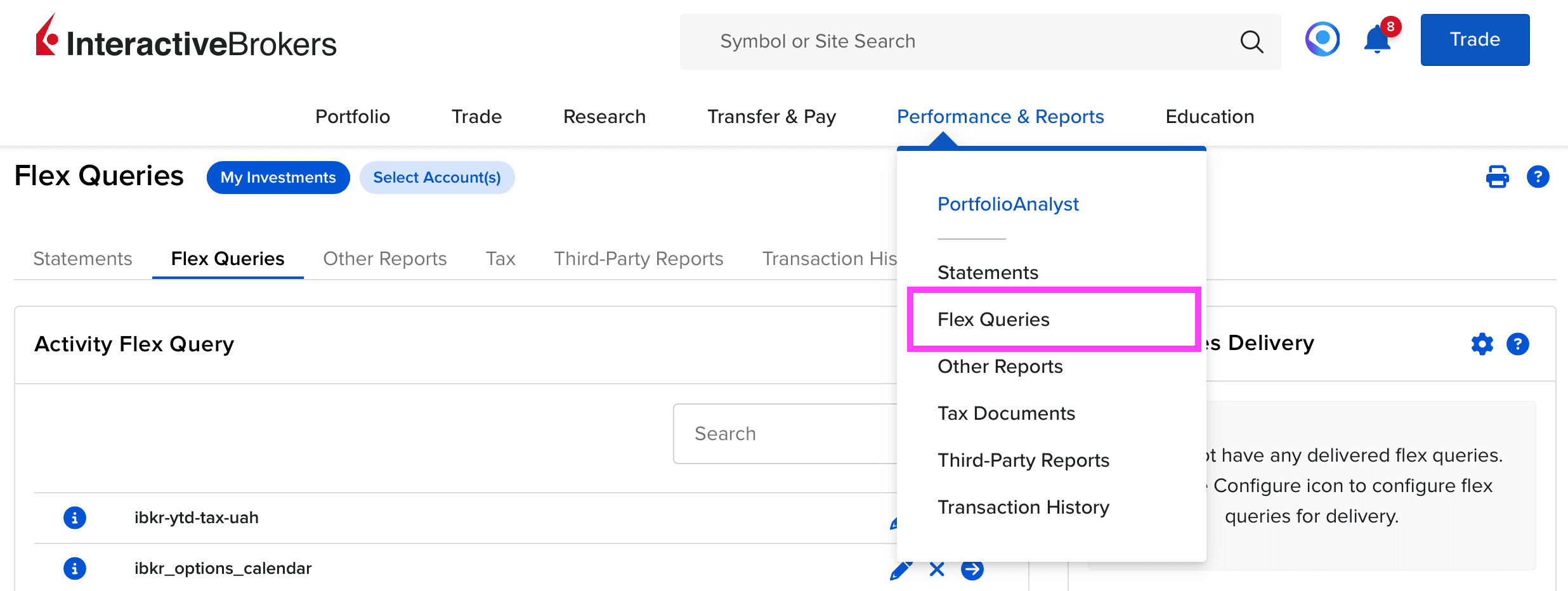
Log in to Client Portal and open Performance & Reports → Flex Queries.
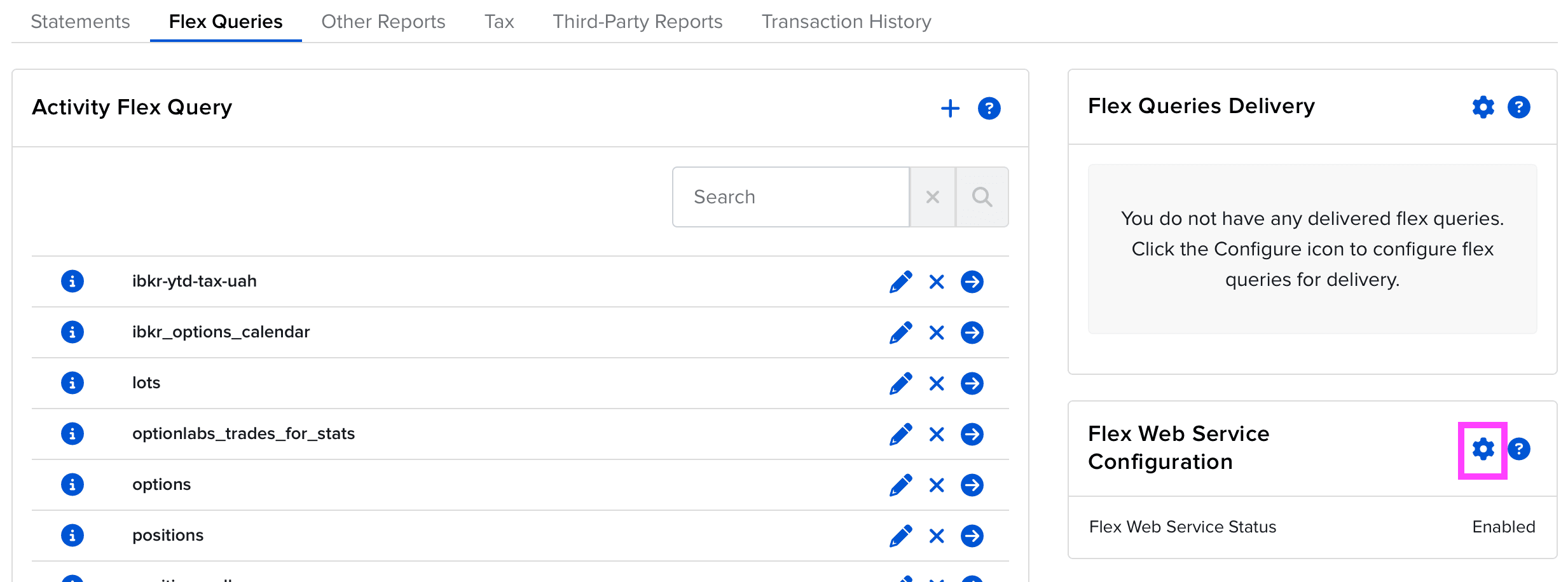
Scroll to Flex Web Service Configuration at the bottom of the page. This is the switch that lets Optionslab fetch your reports over HTTPS.
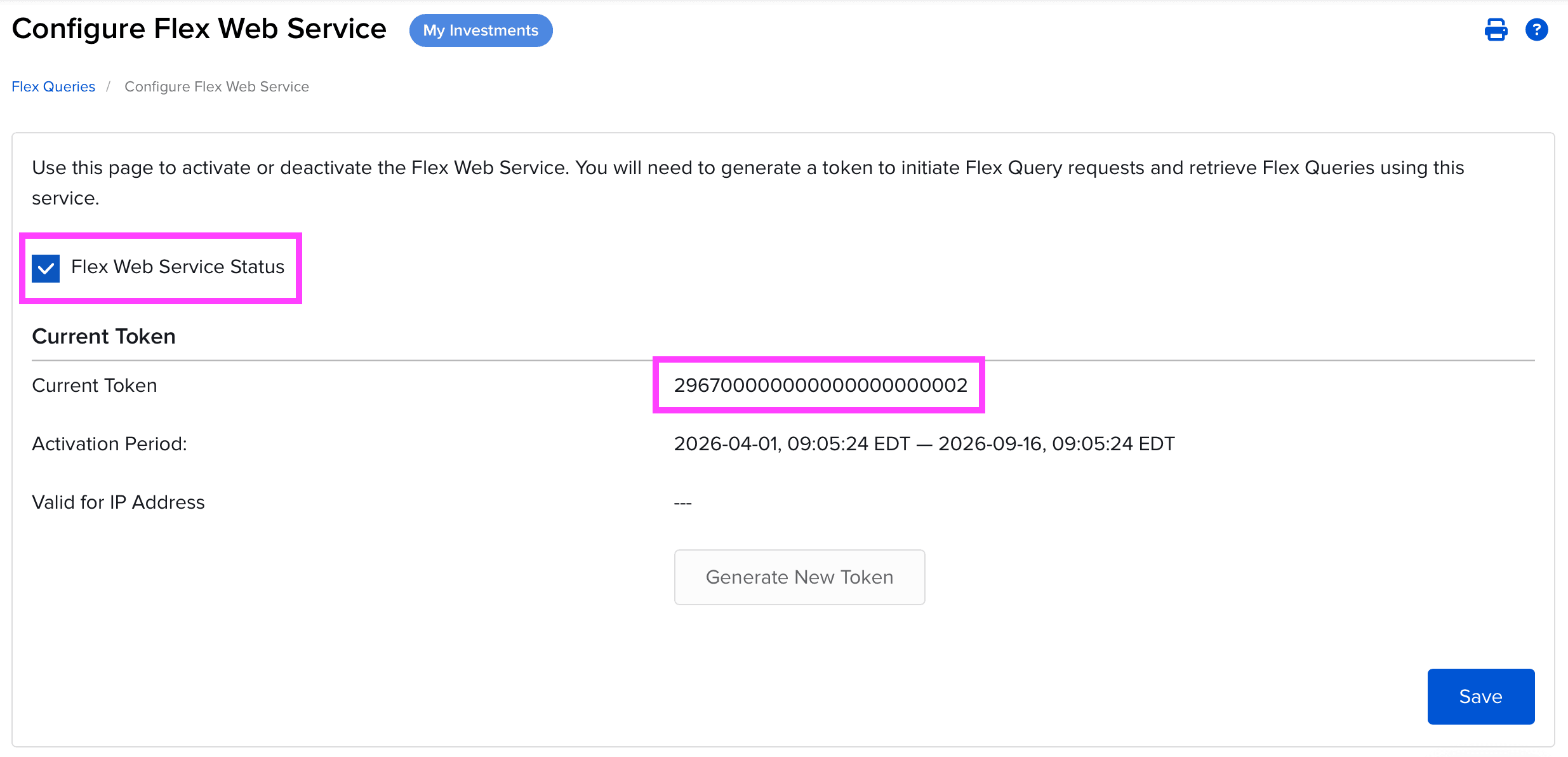
Enable the service and generate a token. IBKR will display it once — copy it somewhere safe; you will paste it into Optionslab in the last step.
Step 2 — Open Positions Report (required)
This is the primary report. It is a daily end-of-day snapshot of every lot you currently hold — stocks, options, futures. Optionslab uses it to build the Positions page.
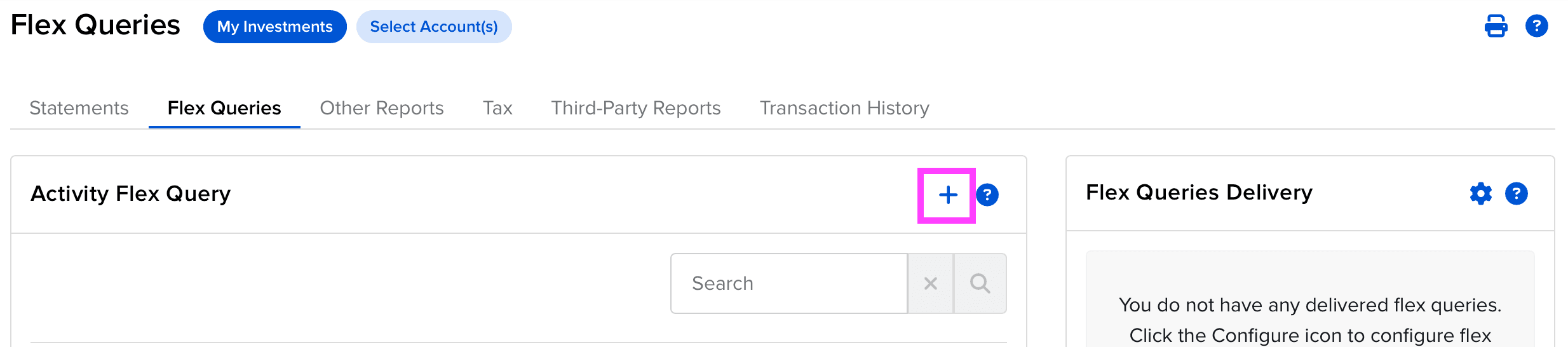
In the Activity Flex Query block, click the small plus (+) icon to create a new query.
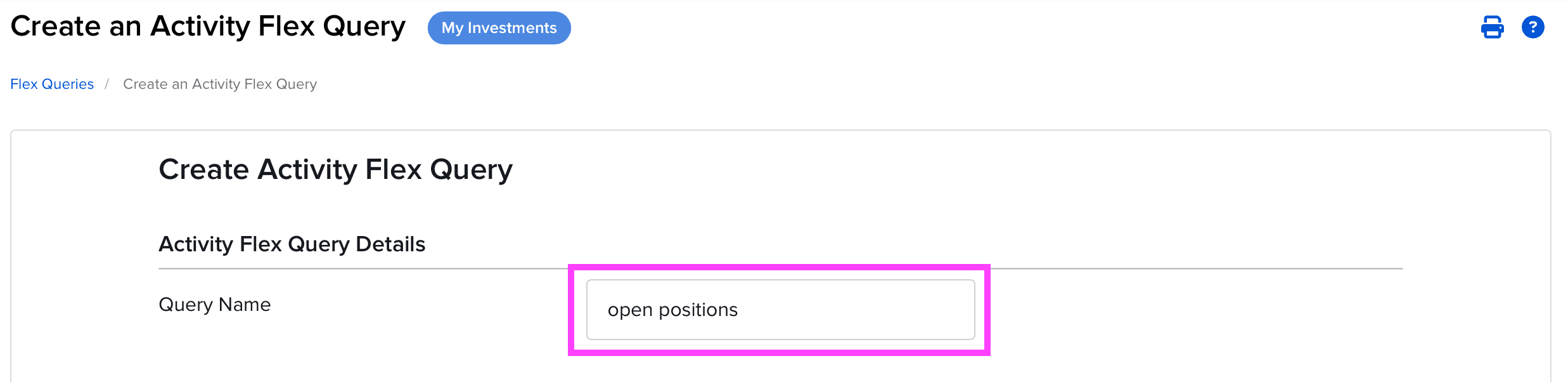
Give it a recognisable name, e.g. Optionslab Open Positions.
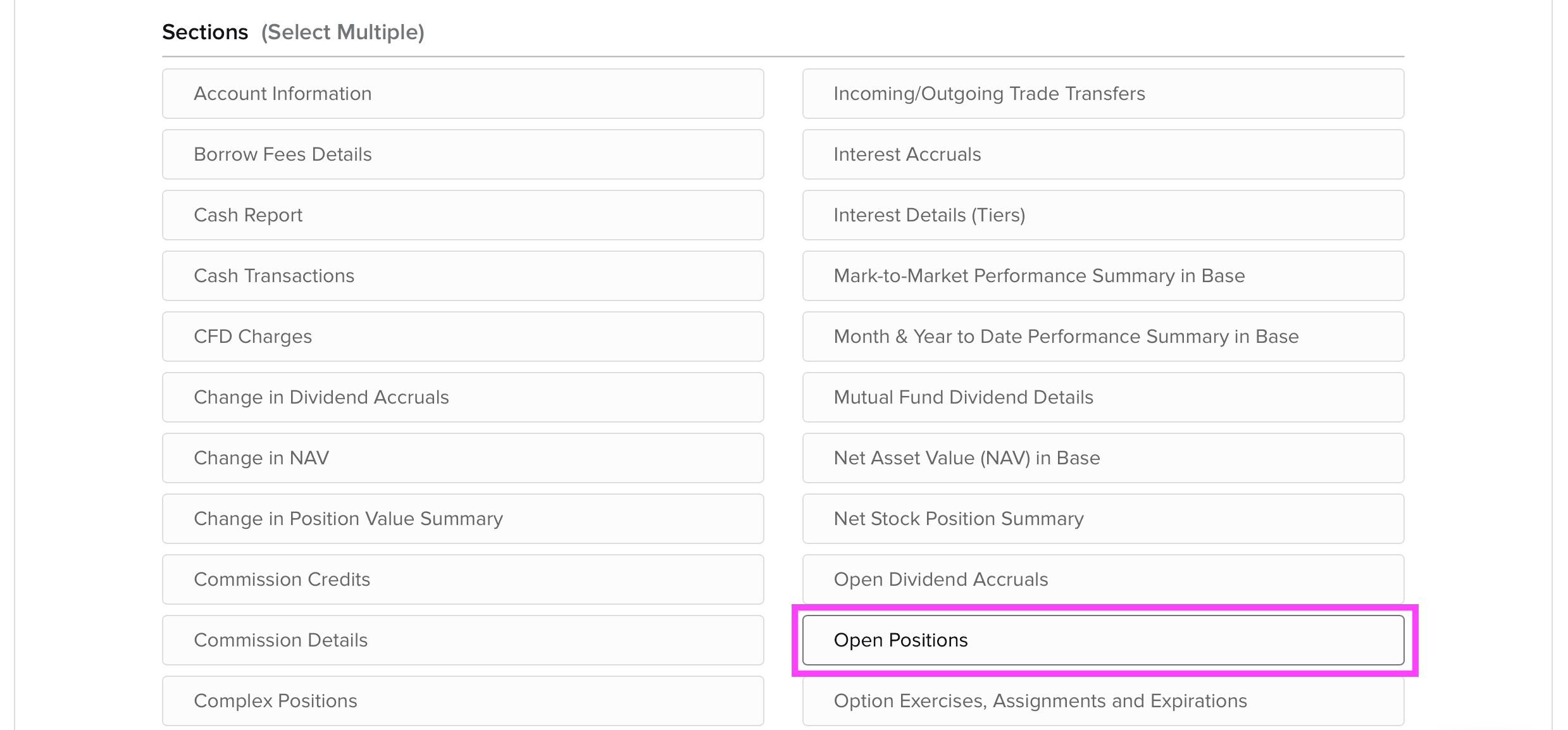
In the Sections block, click Open Positions to open its field selector.
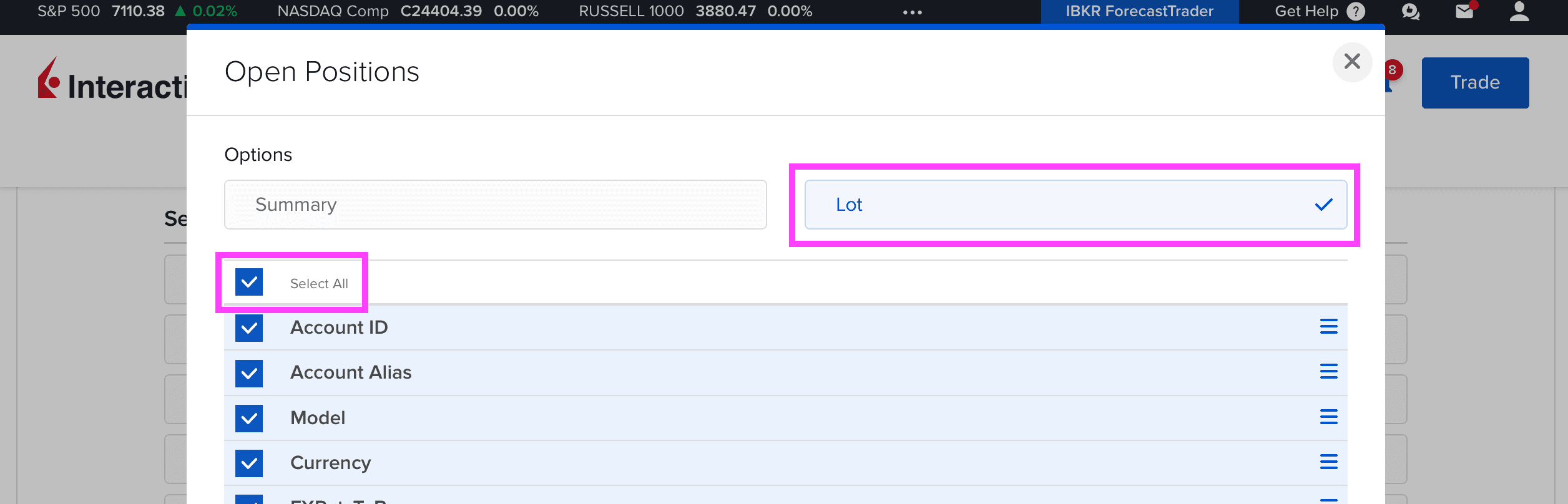
In the Options dropdown pick Lot, then tick Select all to include every field. Click Save at the bottom of the dialog.
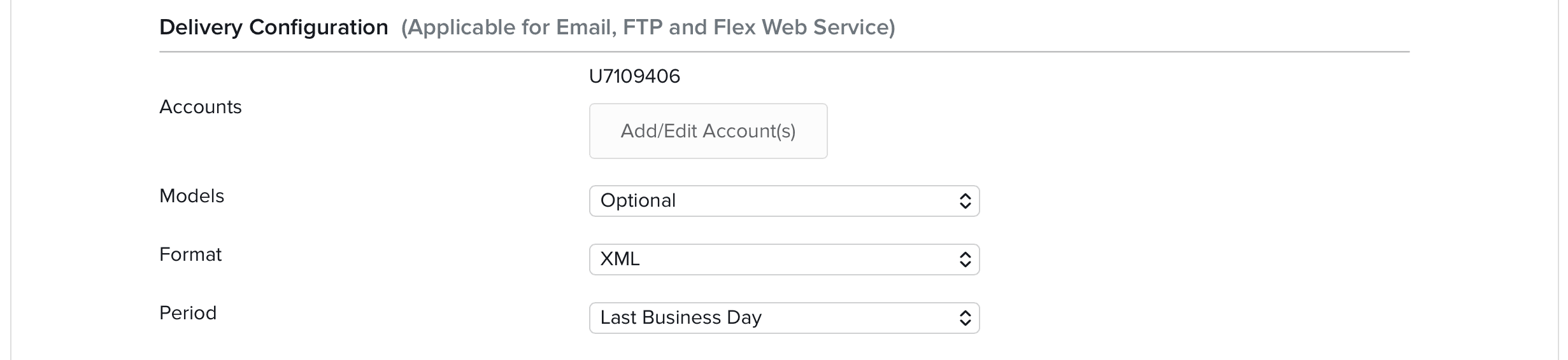
Leave the Delivery Configuration section on defaults.
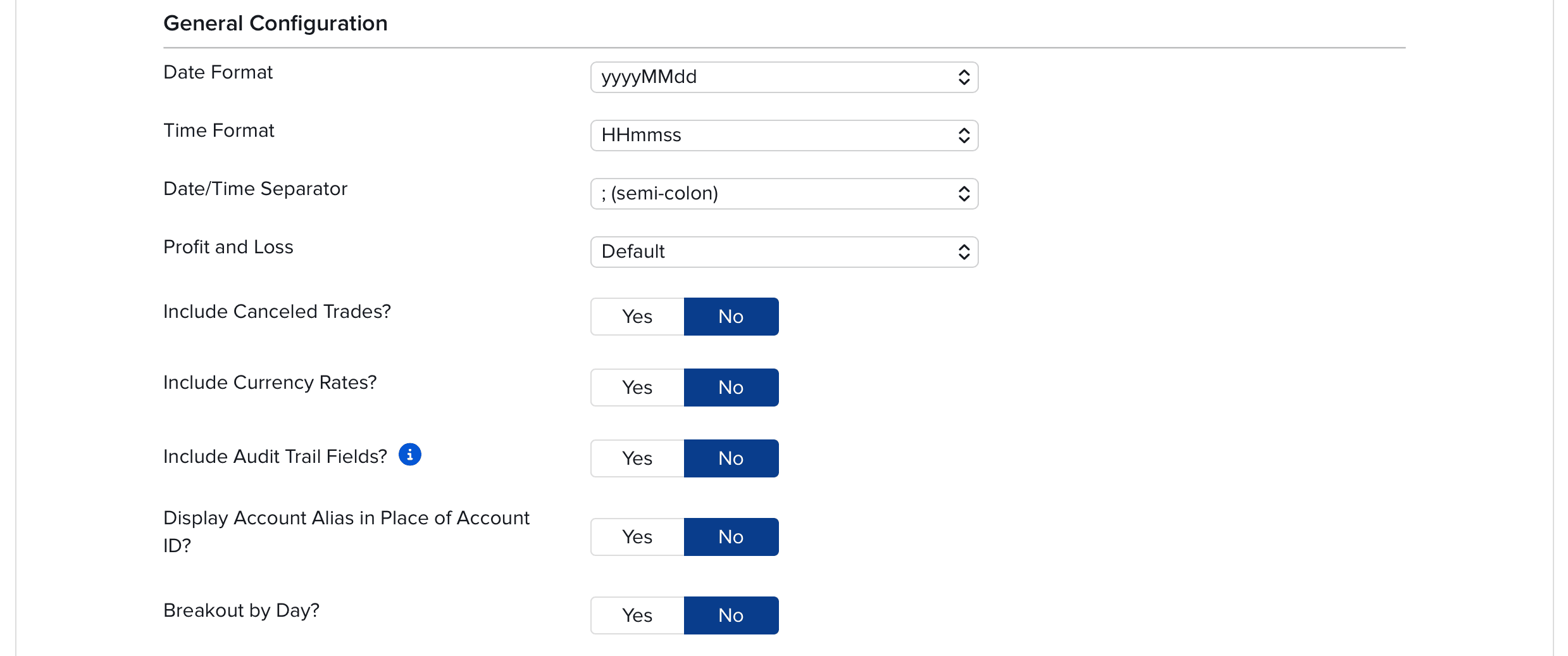
Leave the General Configuration section on defaults too.
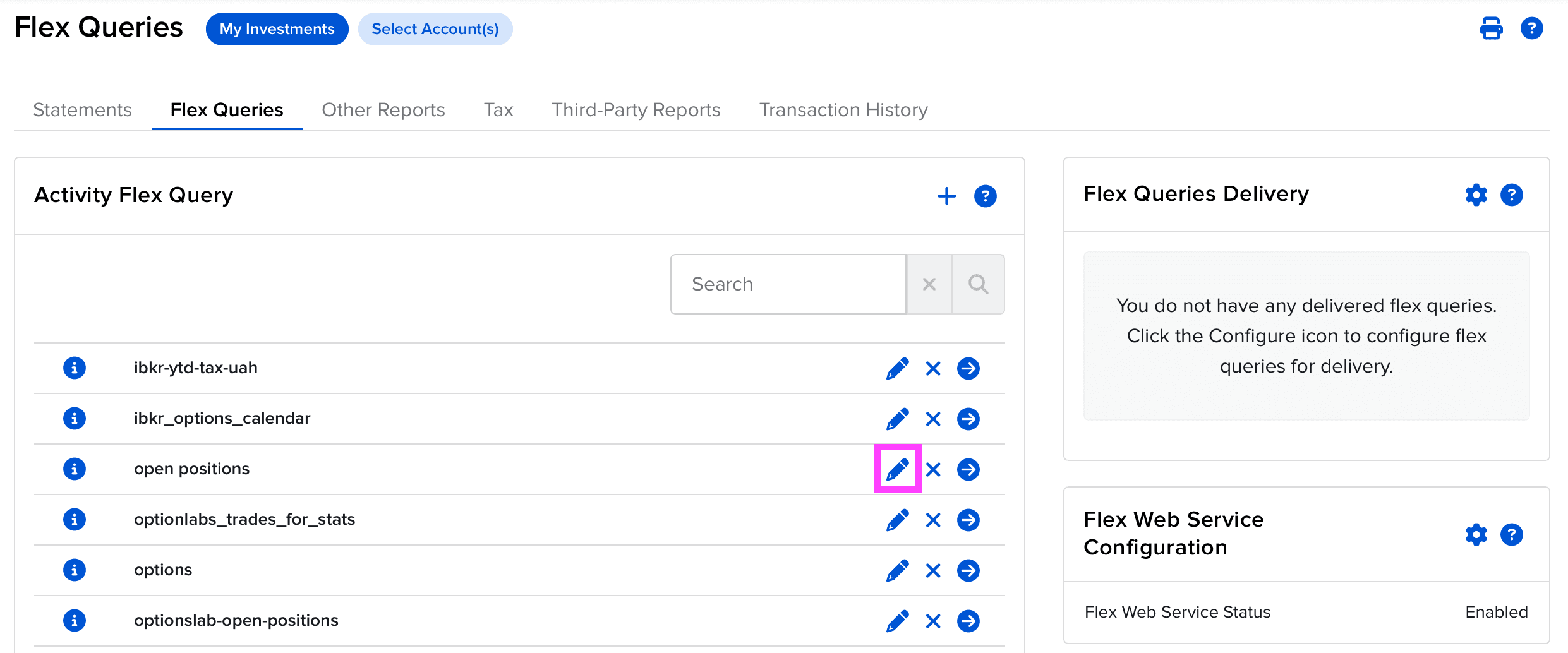
Click Continue, then Create. You will land back on the query list — click the small pencil icon of your new report to re-open it.
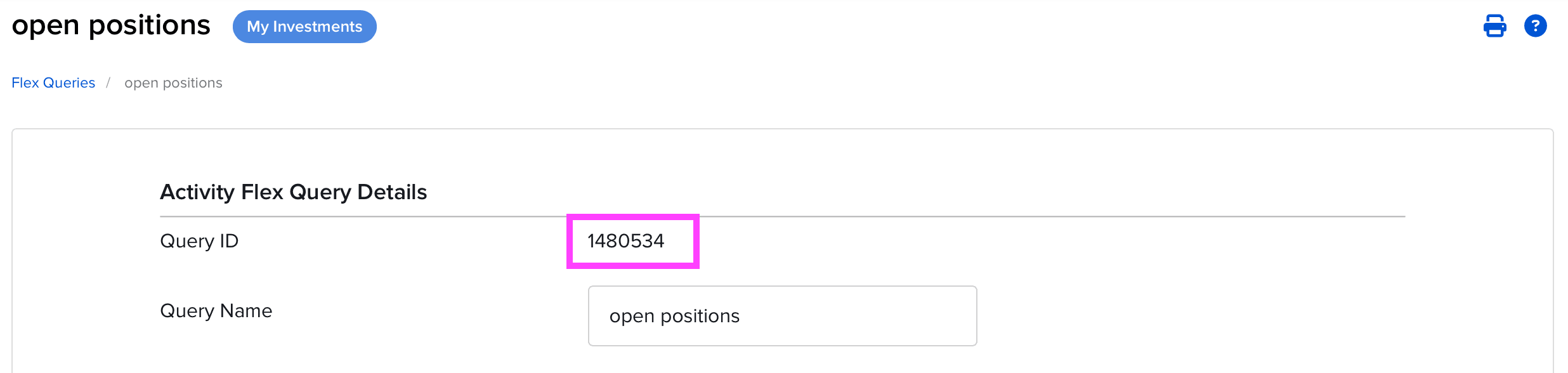
At the top you will see a numeric Query ID. Copy it — you will need it together with the token in the final step.
Step 3 — Trade Confirmations Report (optional)
The Open Positions report is refreshed by IBKR once per day, after the market close. That means positions you open or close today will not appear until tomorrow.
Trade Confirmations solve this. IBKR updates them every few minutes during the trading day, so Optionslab can merge them with the daily snapshot and show an up-to-date view — including same-day scalps, 0DTE trades, and rolls.
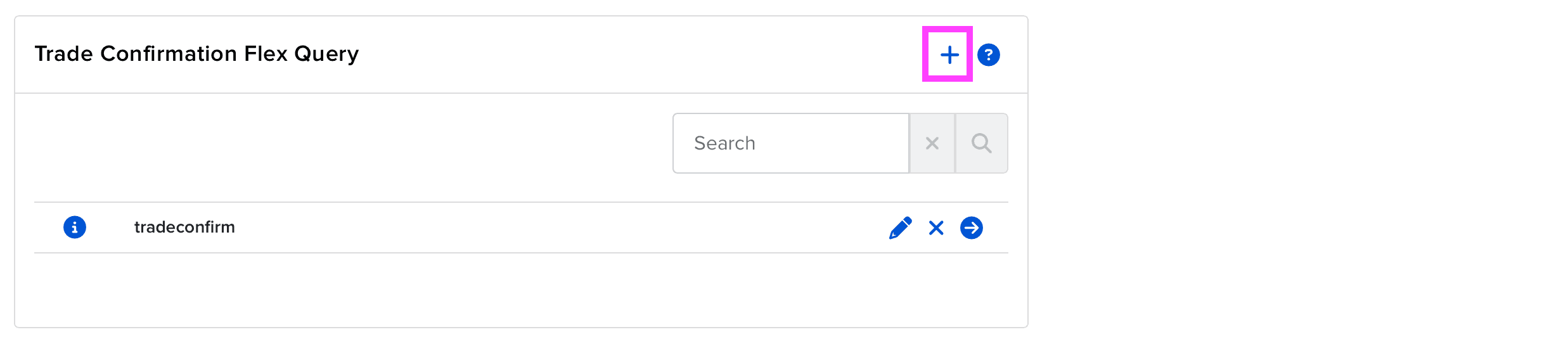
In the Trade Confirmation Flex Query block, click the plus (+) icon.
Name it and open the single Trade Confirmation section.

In Options pick Execution, tick Select all, and click Save.
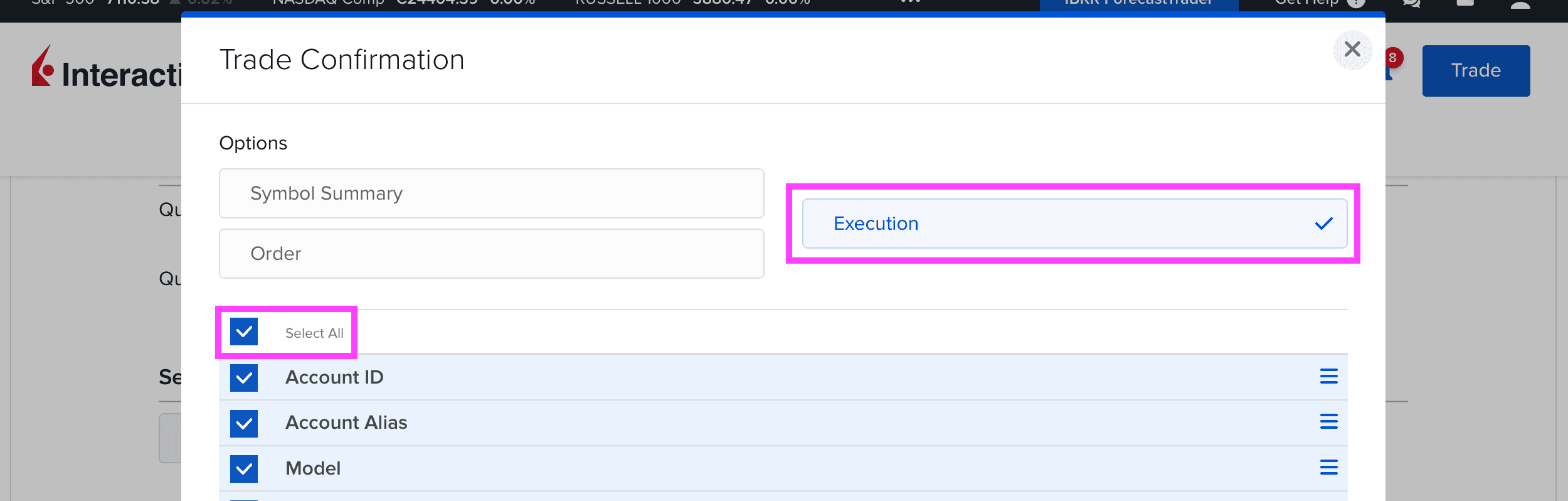
Save the query, then re-open it via the pencil icon and copy its Query ID.
Step 4 — Historical Trades Report (optional)
The Stats page needs your closed trades to compute win rate, PnL distribution, drawdown, and edge analytics. This query exports exactly that.
Back in the Activity Flex Query block click the plus (+) icon again.
Give it a name, e.g. Optionslab Historical Trades.

In the Sections block, click Trades.

In Options pick Closed Lots, tick Select all, and Save.
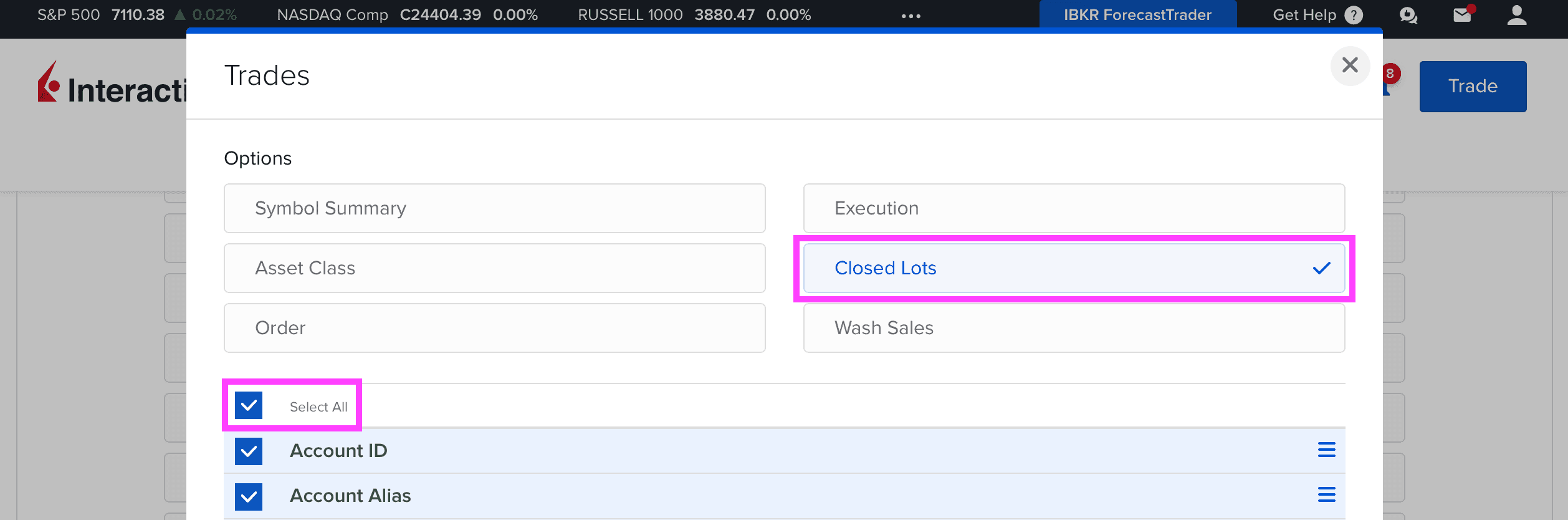
In Delivery Configuration change Period to Year to Date (or a longer window if your broker supports it). Leave everything else on defaults.
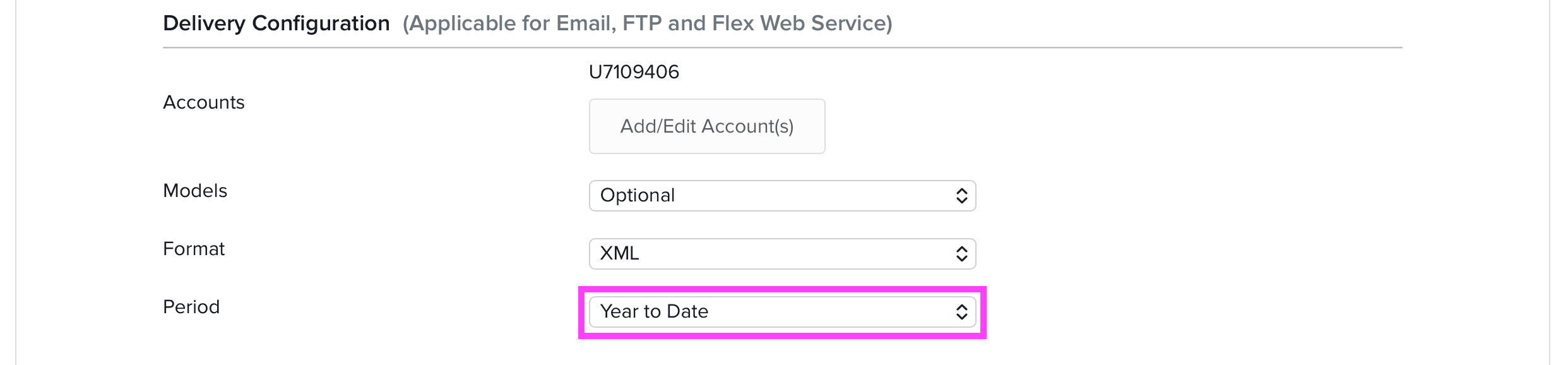
Leave the General Configuration section on defaults.
Save, re-open the query via the pencil icon, and copy its Query ID.
Step 5 — Connect your account in Optionslab
With the token and one or more query ids in hand, open the Accounts page and click Add IBKR Portfolio.

Paste the token and the query ids into the matching fields in the dialog.
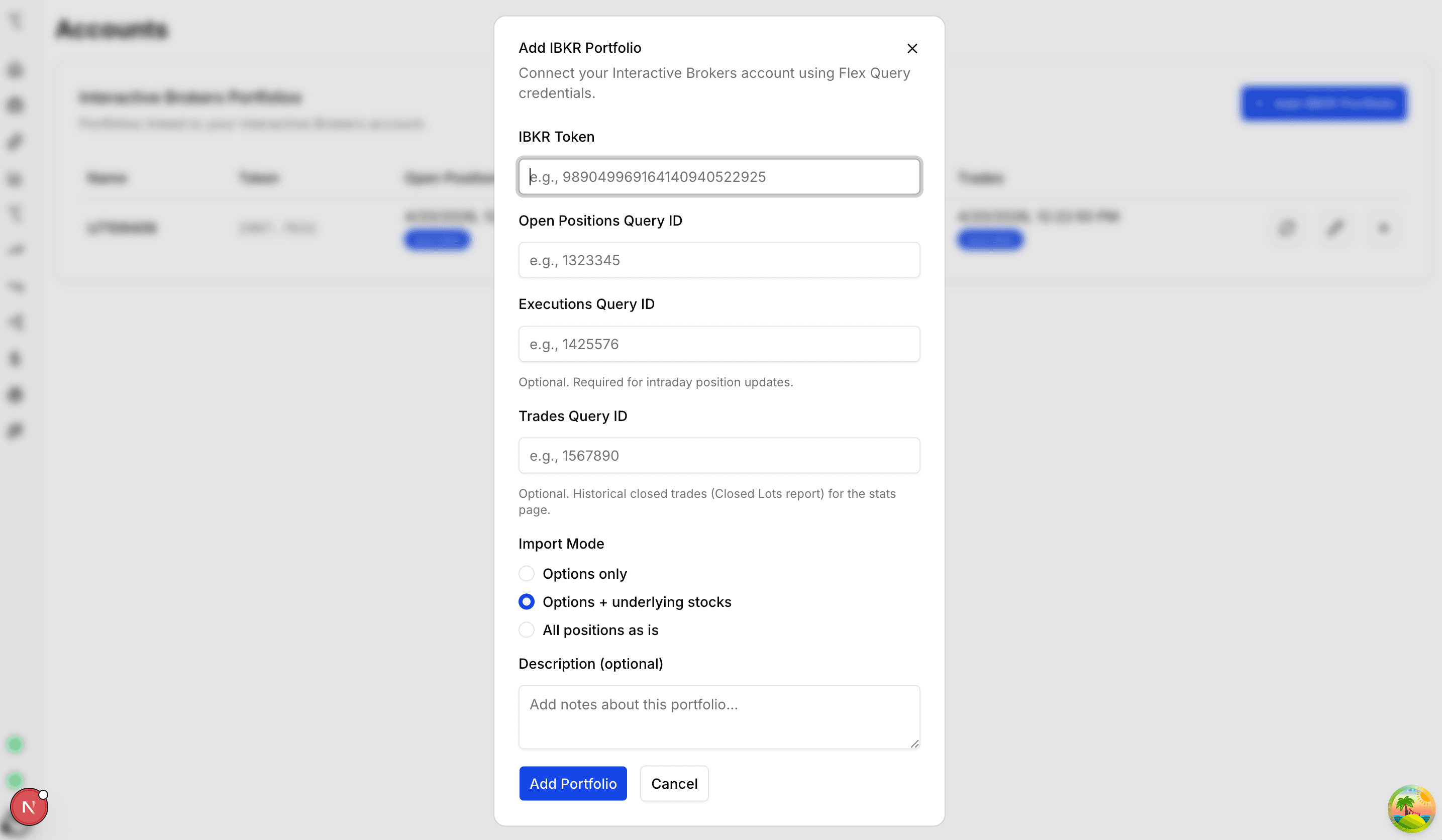
Choose an Import Mode. Options only or Options plus underlyings are the easiest starting points — they filter out unrelated stock holdings you do not want tracked here.
Click Add portfolio. Optionslab will save the config and start a background sync. Press the refresh icon on the right side of the row if you want to trigger an immediate pull.
Where to go next
Now that your account is connected, here are the pages you will likely use most: